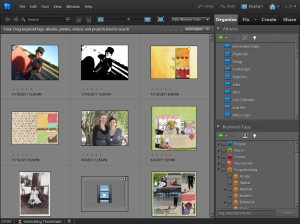
If you are having problems with your files being dis-connected or unavailable in Photoshop Elements Organizer, here's a few tips and tricks to get everything working again.
Not sure if you've imported all the files from your camera?Seeing duplicates of files in Organizer?Rearranged your digital scrapbooking supplies and now your files can't be opened from Organizer?
Use my simple approach to clean up your Organizer and ensure all photos are on your Hard Drive and in Organizer
Reconnect all files and backup
The first step is to help Organizer find all the files you may have moved around on
- Press Ctrl+A to select all
- File Reconnect - All Missing Files
- This will take some time. If you can't reconnect all the files, cancel out of the dialog and backup at least the ones you can find.
- Perform a Backup - follow the steps under File - Backup
This will backup all the files that are currently catalogued. I suggest backing up to an external hard drive.
Removing files on External Media from your Catalog
If you find the Organizer had linked to the External Media (SD card) rather than importing your file onto your hard drive. If you don't have the correct SD card in your computer, this will cause a disconnected file error.
- Remove the disconnected items from the catalog by right clicking on the thumbnail image and selecting Delete from Catalog
- Import the files from the SD card by going to File - Get Photos/Videos - From Camera or card reader
- Click the Advanced button at the bottom of the screen that appears
- Select the drive for your Camera/Card Reader
- Click the check box (tick) for each photo you want to import at this time
- On the right, browse to the folder you want to put the photos in
- Set up your subfolders as you prefer (I file by date captured)
- Under rename select custom name and type the name for the photos you are importing
- Click Get media
- You can then add these to albums and tag as needed
- To find the item on your computer and copy it over for printing go to the Properties panel (bottom right) and click the yellow folder icon
Backup your shiny new catalog
Now you should backup your catalog again. Perform a full backup and then after a while of using this new catalog you should be able to go to your External Hard Drive and delete the old backup.
Want to learn more about Photoshop Elements Organizer?
Overwhelmed by Piles of Digital Scrapbooking Kits?
- Do you have piles of digital scrapbooking supplies?
- Do you have a mess of folders on your computer?
- Do you want to get organised quickly?

See my favourite things in the Digi Scrap HQ Store at Amazon.
I am an Amazon affiliate so may receive a commission if you make a purchase.


AMAZON’S DEAL OF THE DAY – PSE 10 $47 (US) that’s 53% off!
Thanks for sharing that’s an awesome deal!
Hi Melissa – I’m using PSE Organizer 11. I have set up a watched folder for when I download new supplies. BUT, when I open Organizer, it’s not letting me know that I have new supplies that need organized. And when I check the “watched folder”, it’s not there. It’s like the settings aren’t holding for some reason.
Will trying this reconnect option work for me in this case do you think?
Hmm. That’s an odd one, I’ve not had that issue.
I don’t think reconnecting files would make a difference but maybe you could try it.
Once it’s checked the directory and not added folders it will only find new ones (from today onwards) so you may want to just drag your whole supplies folder over and allow it to search through for files it missed.
Then reboot your pc, unzip something new, and load Organizer to see if it picks it up.
Let me know how you go!
Hi melissa i’m trying to do the above actions and i am finding a lot of them say that they were never connected to the photo. Rightfully yes as it is a new EHD but i thought somehow i had converted it. Anybideas how i should proceed?
Are you getting this error? That means it’s connected to the photo on the new EHD. You can either
1) remove the original photo from Organizer (if you already wrote the metadata to file)
or…
OR
2) if you didn’t write the metadata to file
a) remove the EHD from the Organizer tree view (right click and delete – then click ok being sure the ‘delete from hard drive’ check box is UNchecked)
b) then go through and reconnect the files again